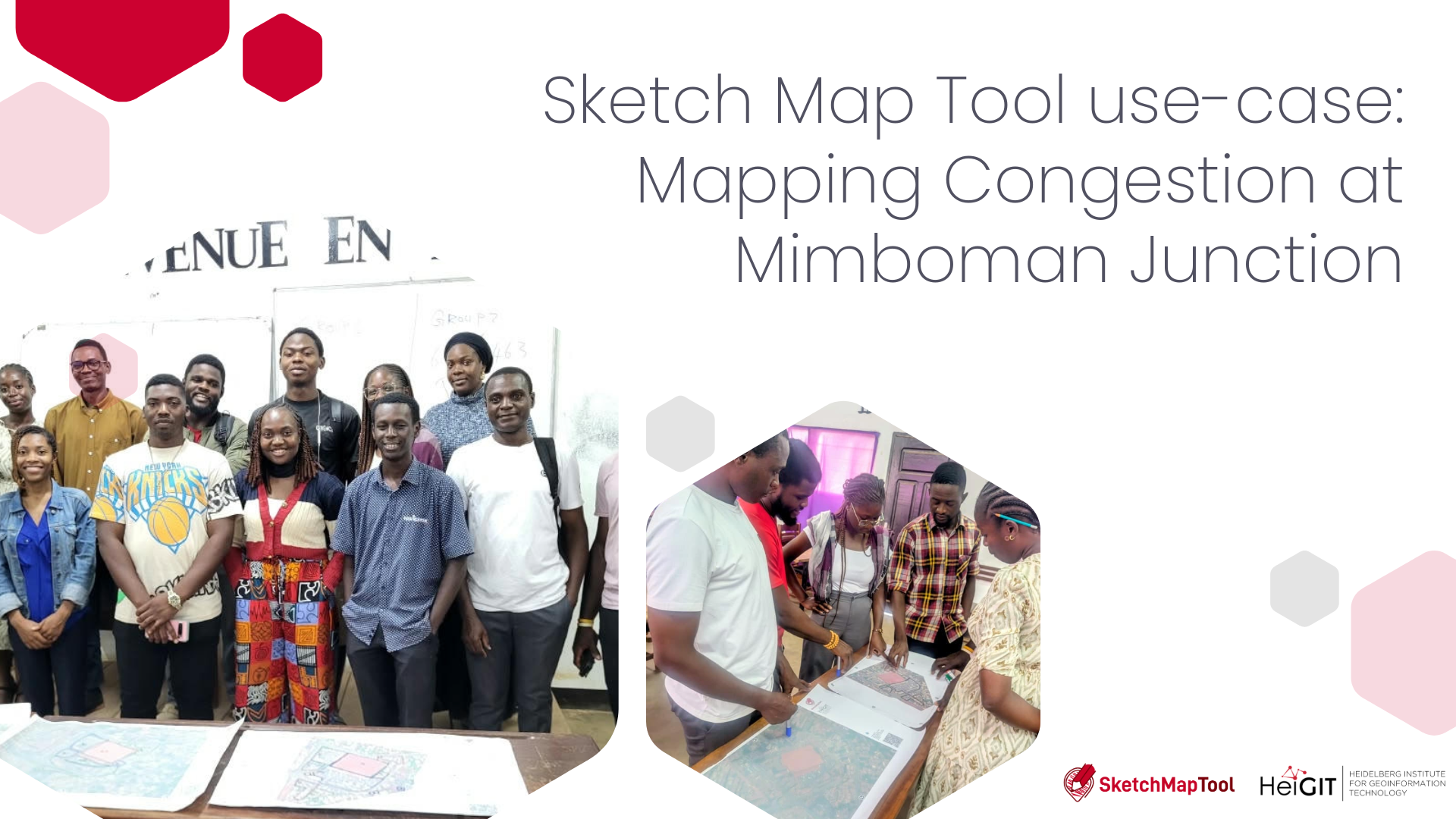
The UN Mappers Ambassadors for Cameroon and OSM ENSTP used the Sketch Map Tool; OSM ENSTP is a student community in geomatics at the École Nationale Supérieure des Travaux Publics (ENSTP), founded in 2023 after State of the Map 2023 in Cameroon. The practical workshop followed an online training on 18 September 2026, in which HeiGIT presented the Sketch Map Tool and showed how to use it.
The Project
Mimboman junction is one of Yaoundé’s busiest crossroads. Several main roads meet beside the Marché du Bois, a bus and taxi station, and a stadium used as a gathering area, and traffic slows down there every day. The workshop is part of the UN Mappers Ambassadors initiative, which aims to create UN Mappers Chapters in Cameroon by working with local communities and by sharing experience and skills between foreign and Cameroonian universities.
Why was the Sketch Map Tool used?
Residents, drivers, and traders know where people and vehicles pile up, but these places appear in no dataset. The Sketch Map Tool lets participants draw this knowledge on paper and turn it into geodata without GPS or an app. It lets participants choose the base map, so the same junction was printed on Esri satellite imagery and their own drone orthomosaic published on OpenAerialMap. Using both showed participants how much better objects can be identified on drone imagery than on satellite imagery.
How was the Sketch Mapping organized?
The training was announced in a public post. Those who responded, were available, and were interested in an in-person session took part: twelve students and young professionals, 5 women and 7 men. After a presentation on UN Mappers, OpenAerialMap, the Drone Tasking Manager, and the Sketch Map Tool, we explained how to work on the maps: draw each zone as a closed polygon, use one marker color per object type, and add a legend to the map.
Participants worked in small groups, and all groups mapped the same categories on both base maps: red for the stadium gathering area and the Marché du Bois towards the bus station, blue for markets, bus and taxi stations. Groups then compared the satellite and drone versions, presented their maps, and discussed them before digitizing.
How were the Sketch Maps analyzed?
Each annotated map was photographed and uploaded to the Sketch Map Tool, which detected the color markings and returned them as georeferenced vector layers. We used QGIS to visualize the results over satellite imagery and OpenStreetMap, with one layer per marker color.
Results and Impact
All groups reached the same conclusion: the busiest zones sit directly on or beside the main roads. Market stalls and bus and taxi stations occupy the edge of the carriageway, vehicles stop in the traffic flow to load passengers, and pedestrians walk on the road. Markets and bus stations placed right next to the road make circulation and urban transport difficult at a junction this busy.
Comparing base maps was the most discussed moment. In the drone image, participants could see individual buses in the station, market roofs, and road edges, and draw tighter zones that follow real boundaries. At this stage, the aim was to master the tool on a real case before proposing solutions. The results can already support a discussion with local planners on where to reorganize pick-up points and protect pedestrian space.
Lessons Learnt
- Drone imagery improves orientation. Thanks to its higher resolution, participants found places faster and drew more precise zones on the drone map.
- Local imagery, local ownership. Our own drone data on OpenAerialMap was usable in the Sketch Map Tool within minutes and is open to all.
- Agree on colors first. A shared legend, printed on the map, makes the digitized layers comparable between groups.
- Paper opens the discussion. Working around a printed map got everyone talking, including participants new to GIS.
- Check the imagery resolution. We noticed slight distortions: the drone image served through OpenAerialMap has a lower resolution than the original orthomosaic, though it remained much clearer than satellite imagery.
To learn more about how the Sketch Map Tool works, watch this quick video tutorial or directly visit the project webpage. To stay up to date on new Sketch Map Tool releases and case studies, you can subscribe to the Sketch Map Tool Newsletter.
Questions or ideas on how to next use the Sketch Map Tool? Write us at sketch-map-tool@heigit.org. We are looking forward to getting in touch.